Copy new TradingView strategy alerts to a compatible broker application or website. The Windows app verifies QTY, then clicks BUY or SELL. No webhook required.
Version 1.0.9 · Windows x64 · .NET 10 Desktop Runtime
Free to use. Optional support for continued development.
Local signal forwarding
No copier webhook required
You choose when to start
YOUR SIGNALS. ONE FOCUSED WINDOW.THE APPLICATION
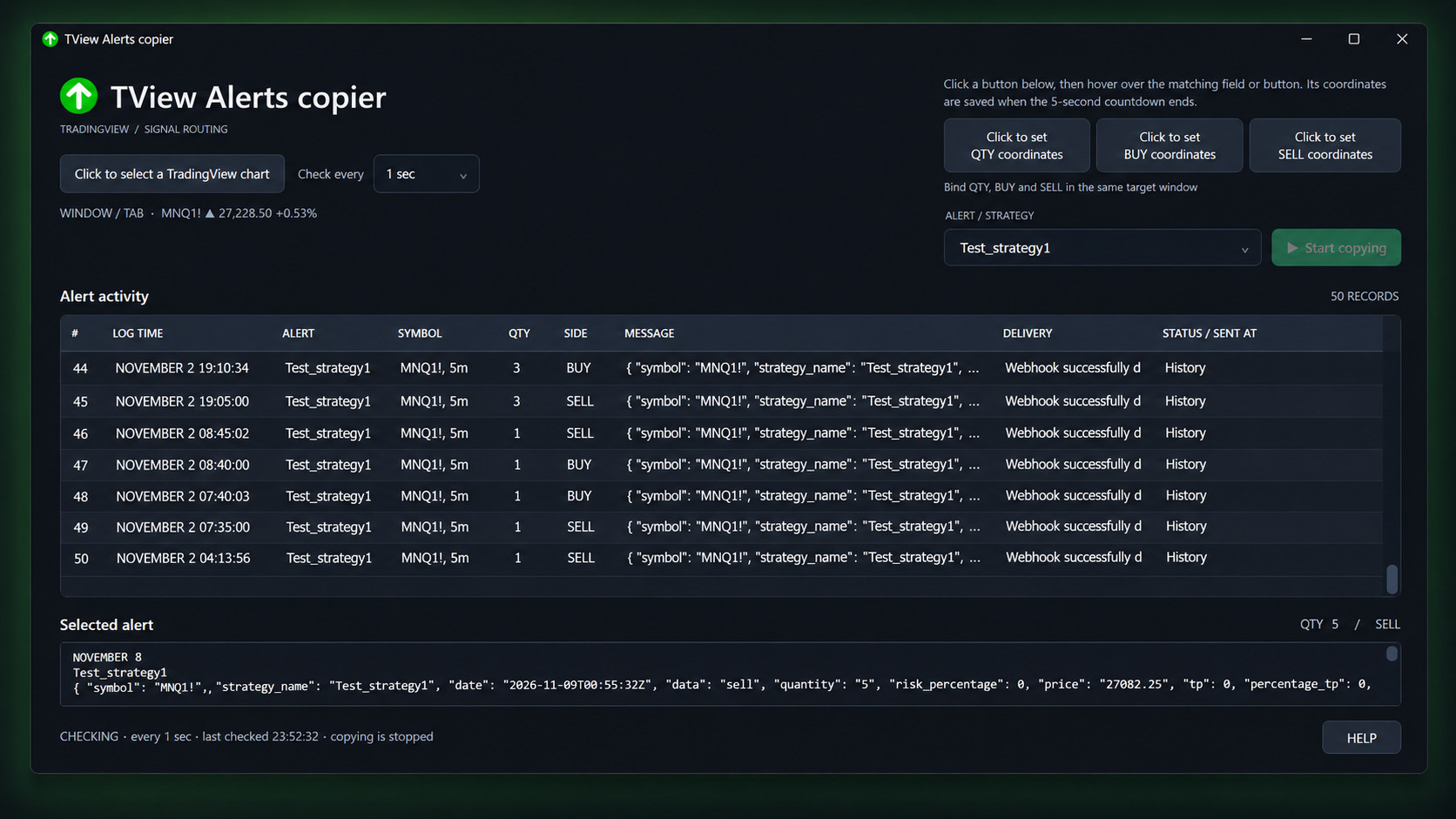
⤢ Explore the interfaceFrom the newest alert to the next action.Illustrative interface · Test_strategy1
A WORKFLOW ACROSS MARKETS
Your asset. Your platform.
For assets charted in TradingView and destination windows with accessible QTY, BUY, and SELL controls.
01
Futures
Tradovate · Topstep · NinjaTrader
02
Stocks
Interactive Brokers
03
Crypto
Bybit · Binance
Platform testing reported by the app owner. Compatibility depends on the platform’s current interface and the accessibility of its controls. These are not partner endorsements.
FROM ALERT TO ACTION
Set your targets. Keep them in view.
Keep your chart in TradingView and order entry in your trading platform. The copier remembers the target window and follows supported controls as they move.
Click the chart selection button, then your chart window. The app opens Alerts → Log and reads the available history.
02
Point to QTY, BUY, and SELL.
Click each setup button, then hover over its matching control in the same destination window. The five-second countdown saves the target without clicking it. For painted BUY/SELL buttons, enable Visual tracking before selection and crop one button in the screenshot.
5 → 4 → 3 → 2 → 1 → SAVED
03
Choose what to follow.
Select the alert’s display name and a check interval: 1, 5, 15, or 30 seconds, or 1 minute. Set the matching asset in your destination window.
04
Start when you’re ready.
Each new matching alert gets fresh target checks, verified QTY entry, and the appropriate BUY or SELL click. The table records the forwarding status and send time. Stop copying ends forwarding; existing history is not replayed.
BUILT FOR A CHANGING DESKTOP
Find the control. Then take action.
Window movement should not mean starting over. Choose the tracking method your destination supports, and keep its controls visible on the saved tab.
ACCESSIBLE CONTROLS
Follow fields and buttons.
The copier remembers the target application, window, and available page context. Standard accessible controls can follow movement, resizing, and layout changes. Recreated controls need a unique saved identity; manual coordinate targets still need rebinding after layout changes.
PAINTED BUY / SELL BUTTONS
Find a button by its image.
Capture a small region around one static BUY or SELL label and its click point. The app searches the saved window for a distinct match and updates the position. Missing or ambiguous matches block forwarding. QTY always requires an editable, readable field.
TWO SEPARATE CHECKS
Every minute. Before each signal.
Once all three targets are set, a passive minute check updates resolved locations without typing, clicking, moving the pointer, or bringing a window forward. It also runs while copying is stopped. Each new signal still gets fresh checks before QTY entry and the side click; busy operations can defer the minute check.
TRADINGVIEW RECOVERY
Return to the saved chart tab.
Auto-return is on by default, including while copying is stopped. The next check returns to the saved tab and selects Alerts → Log when available. Temporary Log failures trigger reconnection; forwarding resumes only after continuity is verified. Closed tabs or restarted browsers require selecting the chart again.
Visual tracking needs a fully visible, uncovered destination. Appearance changes may require a new crop. Saved targets and cropped images last for the current app session; images stay in local memory. The copier does not switch destination broker tabs. Turn off Auto-return if you want to browse other TradingView tabs without being returned.
MADE TO STAY FOCUSED
The details, without the extra dashboard.
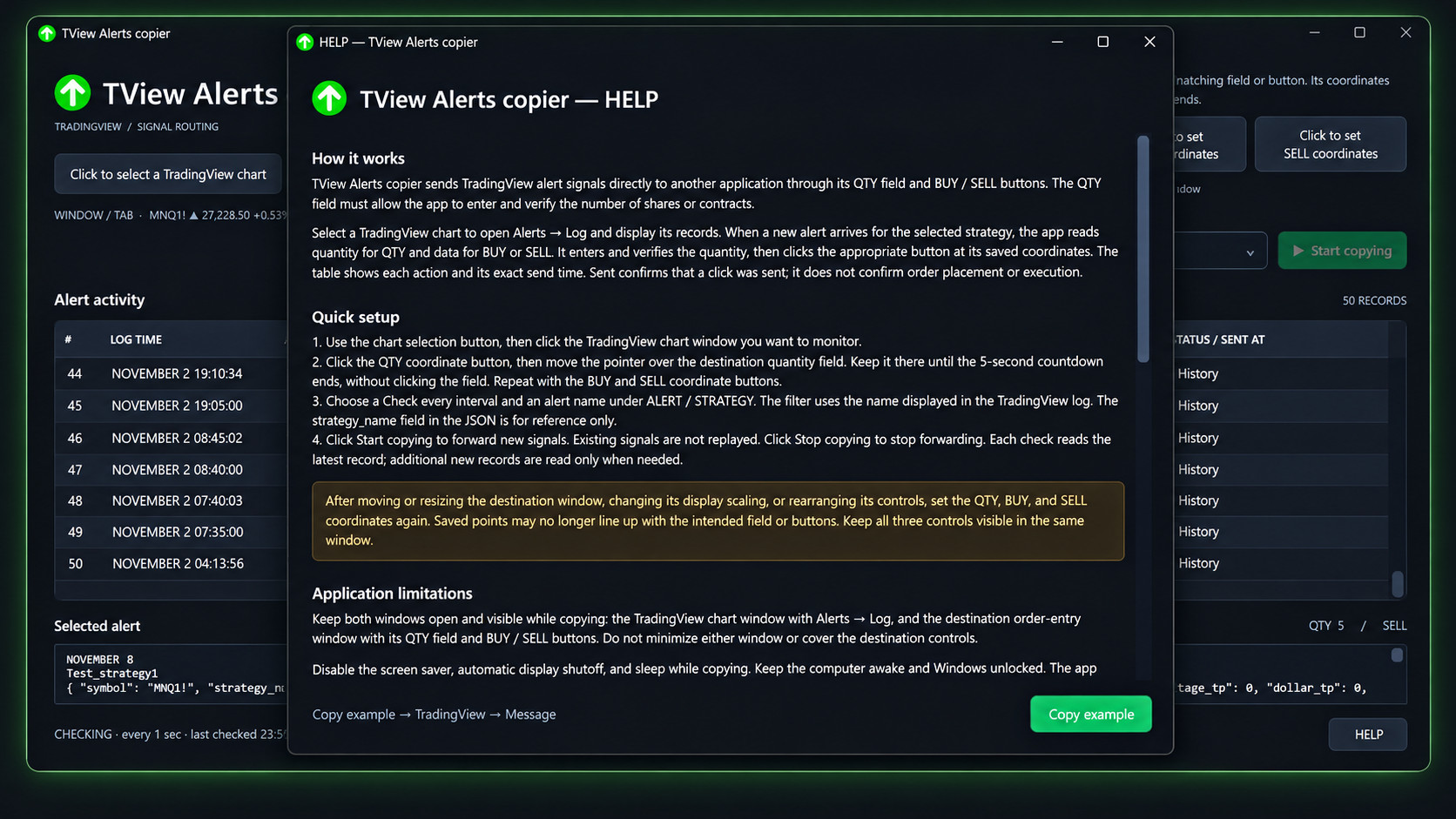
Inspect the full message, quantity, direction, and forwarding status. HELP explains setup and includes a copyable alert template. LOG opens a live window of dated messages and errors, including reconnection and target-check results.
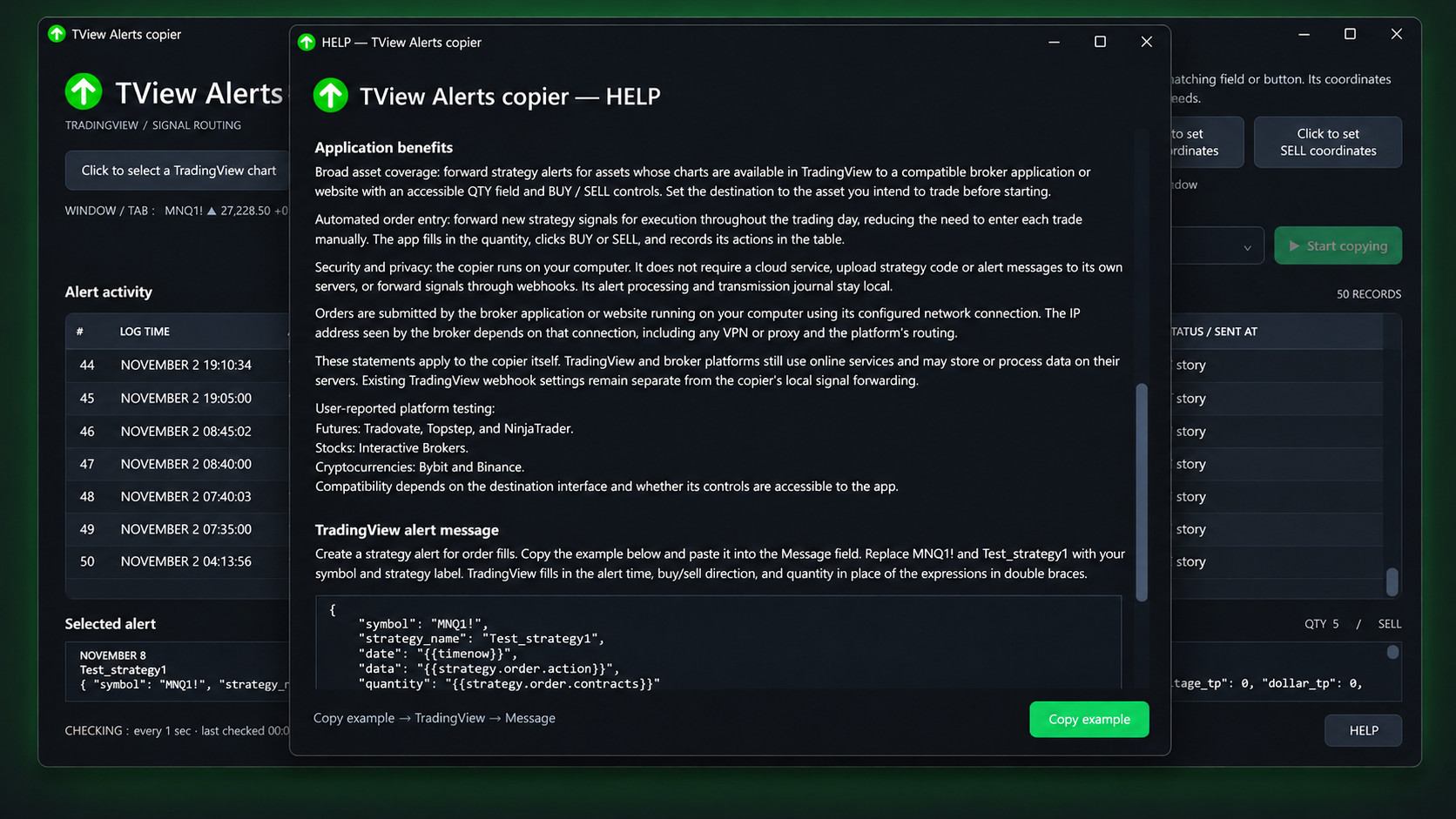
Local processing, practical limits, and a ready-to-copy message.
Edited screenshots show an earlier interface with the demo name Test_strategy1. The current release also includes LOG, tab auto-return, visual tracking, and target-check status.
Check what’s new. Leave history alone.
Regular checks read the newest record first. If nothing changes, the table stays as it is. Additional new entries are collected in order. This interval controls alert polling; target positions have a separate minute check. Reading and processing time add to the interval.
1s5s15s30s1m
A SIMPLE STARTING POINT
One message. Two fields that act.
Paste this template into the Message field of a TradingView strategy order-fill alert. TradingView replaces the placeholders when the alert fires.
quantity
The number entered in QTY.
data
buy or sell chooses the button.
The copier filters by the alert’s name in the TradingView log. The JSON field strategy_name is for reference. Change the symbol and label to match your setup.
Illustrative workflow. This website does not submit orders.
LOCAL CONTROL
Your desktop does the forwarding.
The copier works through the windows on your computer. You decide when signal forwarding starts and stops.
No copier cloud account or server.
No webhook forwarding by the copier.
Alert processing and the transmission journal stay local.
Start and stop are always your choice.
A CLEAR BOUNDARY
TradingView and broker platforms still use their own online services. Your broker app or browser submits orders over its configured network connection; the IP address depends on that connection, any VPN or proxy, and platform routing. Existing TradingView webhook settings are separate.
BEFORE YOU START
A few practical questions.
A predictable workflow starts with the right setup.
Keep both windows visible, your computer awake, and Windows unlocked.
Will it work with my broker?
It can work with a compatible desktop app or website that exposes an editable, readable QTY field and clickable BUY / SELL controls. Standard buttons and some custom controls are supported. Compatibility depends on the actual interface, and a platform update may require new coordinates.
Futures, stock, and crypto platform tests listed on this page were reported by the app owner.
Can I minimize the windows or lock my PC?
Keep the TradingView chart with Alerts → Log and the destination order-entry window open and visible. Do not cover the destination controls. Disable the screen saver, automatic display shutoff, and sleep while copying. A locked or sleeping desktop does not provide the interactive access this workflow requires.
What if I move or resize a window?
Tracked accessible controls and custom BUY/SELL buttons with a valid visual template can be found again in the saved destination context. Manual Coordinate target bindings must be set again after layout changes. Missing or ambiguous targets block forwarding; movement during QTY entry blocks the side click.
Keep all three controls visible in the same window, keep the saved destination tab selected, and choose the intended asset. Appearance or scaling changes may require a new image crop. Bindings must be selected again after restarting the app.
How are button positions checked?
After QTY, BUY, and SELL are configured, a separate minute check updates their resolved positions without input, clicks, pointer movement, or window activation. It runs even while copying is stopped. A covered visual target is reported as unavailable; the app does not bring it forward for this passive check.
The target-check line and LOG show the result. Busy operations can defer a check, and a new signal takes priority. Every signal still gets fresh target checks before quantity entry and clicking; the last minute check never authorizes use of stale positions.
What if I switch TradingView tabs or lose the Log?
With Auto-return to TradingView tab enabled, the next check returns to the exact saved tab and selects Alerts → Log when available, even while copying is stopped. Turn it off to use other browser tabs without automatic return. It does not automatically switch destination broker tabs.
Temporary Log read failures trigger reconnection with no forwarding during recovery. Copying resumes only after continuity with the previous records is verified. If the tab was closed, the browser restarted, or the old records are permanently gone, stop copying and select the chart again to establish a new starting point.
Will old alerts be sent when I press Start?
No. The current records become the starting history. Only new matching records after Start are candidates for forwarding. The app does not automatically retry an ambiguous click after a failure or restart.
What does “Sent” confirm?
It confirms that the copier sent a mouse click to the destination control. It does not confirm that the broker accepted or filled an order. The app verifies QTY before clicking and records the send time with milliseconds.
Where can I see errors and application messages?
Click LOG, immediately to the left of HELP. Its separate window shows the date, time, level, and full message, updates live, and includes saved messages from earlier sessions. The local diagnostic file is %LOCALAPPDATA%\TViewAlertsCopier\application-log.jsonl.
A separate local transmission journal records forwarding attempts. Unconfirmed destination clicks are not retried automatically. Sent confirms a click, not a broker fill.
What do I need to run it?
A Windows x64 computer with the .NET 10 Desktop Runtime, a TradingView strategy alert, and a compatible destination order-entry window. This download requires the runtime; it does not include it.